> ## Documentation Index
> Fetch the complete documentation index at: https://training-docs.cerebras.ai/llms.txt
> Use this file to discover all available pages before exploring further.
# Quickstart: Preprocess Your Data
> Learn how to preprocess text-only and multimodal datasets into HDF5 format for pretraining and fine-tuning.
## Before You Begin
Before you can pretrain or fine-tune your model, preprocess your text-only or multimodal data into HDF5 format for the Cerebras platform.
You will:
* Set up your data directory
* Prepare your config file
* Run the preprocessing script
* Visualize the preprocessed data
Input files should be in one of the following formats:
* `.jsonl`, `.json.gz`, `.jsonl.zst`, `.jsonl.zst.tar`
* `.parquet`
* `.txt`
* `.fasta`
## Set Up Your Data Directory
Place your raw data in a directory. If processing multimodal data, set up an image directory as well. You'll need to supply these paths in your config file.
If you're using a HuggingFace dataset, note the name of the dataset. Learn more about using HuggingFace data [here](../model-zoo/components/data-preprocessing/data-preprocessing#setup-section).
When using the Hugging Face CLI to download a dataset, you may encounter the following error:
`KeyError: 'tags'`
This issue occurs due to an outdated version of the `huggingface_hub` package. To resolve it, update the package by running:
`pip install --upgrade huggingface_hub==0.26.1`
## Prepare Your Config File
Your config file contains three sections: `setup`, `processing`, and `dataset`.
View example configs for various use cases [here](https://github.com/Cerebras/modelzoo/tree/main/src/cerebras/modelzoo/data_preparation/data_preprocessing/configs).
Each section is broken down below with examples for different data types.
### Setup
The **setup** section is where you set the path to your data, the mode (pretraining or fine-tuning), and other key flags.
Learn more about additional Setup flags [here](../../model-zoo/components/data-preprocessing/data-preprocessing#setup-section).
Use the tabs to see examples for different data types:
```yaml Text-Only Data theme={null}
setup:
data:
source: "" #local dir or HuggingFace dataset name
type: "local" #set to "huggingface" to use HuggingFace data
split: "test"
cache_dir: "path/to/cache_dir"
# other parameters accepted by HuggingFace ``load_dataset`` API...
mode: "pretraining" #or "finetuning"
output_dir: "./output/dir/here/"
processes: 1 #desired number of CPU cores, set to 0 for default number of cores available
```
```yaml Multimodal Data theme={null}
setup:
data:
source: "/path/to/local/dataset"
type: "local"
image_dir: "/path/to/image_dir"
mode: "finetuning"
output_dir: "./output/dir/here/"
processes: 1
```
### Processing
The **processing** section is where you define which tokenizer and read hook you want to use.
* There are a variety of read hooks available and each one processes data differently, preparing it for specific machine learning tasks. Learn more about read hooks [here](https://cerebras-training.mintlify.app/model-zoo/components/data-preprocessing/read-hooks).
* Similarly, there are a variety of tokenizers available. Learn more about how to initialize different tokenizers [here](../../model-zoo/components/data-preprocessing/data-preprocessing#tokenizer-initialization).
```yaml Text-Only Data theme={null}
processing:
huggingface_tokenizer: "bert-base-uncased"
tokenizer_params:
param1: value1
param2: value2
read_hook: "cerebras.modelzoo.data_preparation.data_preprocessing.hooks.text_read_hook"
read_hook_kwargs:
text_key: "text"
resume_from_checkpoint: False
max_seq_length: 2048
read_chunk_size: 1024
write_chunk_size: 1024
shuffle: False
shuffle_seed: 0
ftfy_normalizer: NFC
use_ftfy: False
wikitext_detokenize: False
```
```yaml Multimodal Data theme={null}
processing:
custom_tokenizer: cerebras.modelzoo.data_preparation.data_preprocessing.custom_tokenizer_example.CustomLlama3Tokenizer:CustomLlama3Tokenizer
tokenizer_params:
pretrained_model_name_or_path: "meta-llama/Meta-Llama-3-8B-Instruct"
token: ""
read_hook: "cerebras.modelzoo.data_preparation.data_preprocessing.hooks.finetuning_llava_hook_prompt_completion"
read_hook_kwargs:
multi_turn_key: "conversation"
multi_turn_role_key : "from"
multi_turn_content_key: "value"
image_key: ""
image_token: ""
phase: 1
resume_from_checkpoint: False
max_seq_length: 2048
read_chunk_size: 1024
write_chunk_size: 1024
shuffle: False
shuffle_seed: 0
ftfy_normalizer: NFC
use_ftfy: False
wikitext_detokenize: False
```
### Dataset
The **dataset** section is where you can set additional token generator parameters.
Learn more about additional dataset parameters [here](https://cerebras-training.mintlify.app/model-zoo/components/data-preprocessing/data-preprocessing#dataset-parameters).
```yaml Text-Only Data theme={null}
dataset:
use_vsl: False
pack_sequences: True
```
```yaml Multimodal Data theme={null}
dataset:
is_multimodal: True
use_vsl: False
```
## Run the Preprocessing Script
Run the following command with the path to your config file:
```bash theme={null}
cszoo data_preprocess run --config /path/to/configuration/file
```
## Visualize Your Data
This tool visualizes preprocessed data efficiently and in an organized fashion, allowing for easy debugging and error-catching in the output data. You can supply other arguments (listed below) if needed.
Run the following command:
`python launch_tokenflow.py --output_dir `
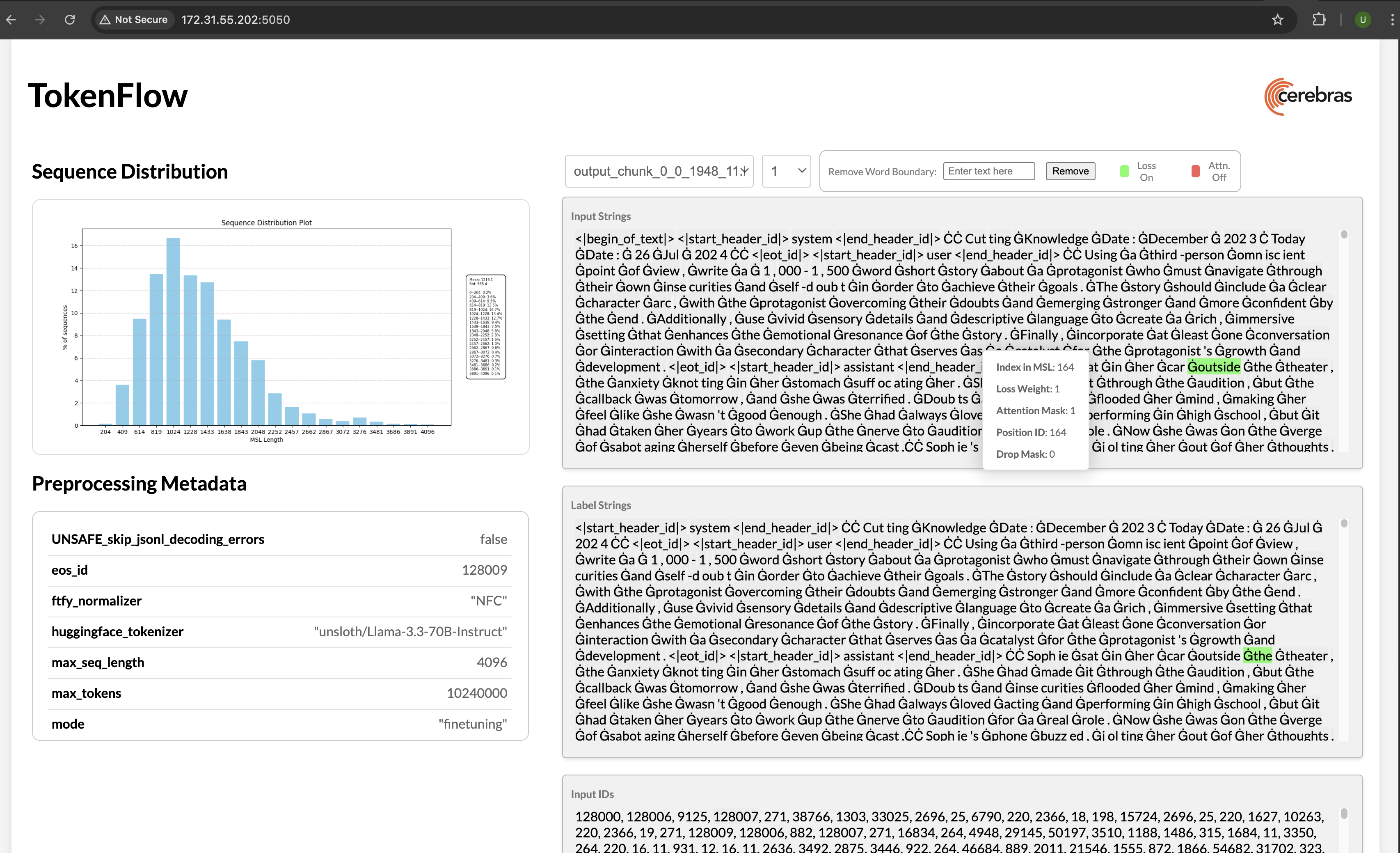
In your terminal, you will see a url like [`http://172.31.48.239:5000.`](http://172.31.48.239:5000.) Copy and paste this into your browser to launch [TokenFlow](../../model-zoo/components/data-preprocessing/visualization-and-debugging), a tool for interactively visualizing whether loss and attention masks were applied correctly:
 * `output_dir`: Contains the file(s) you can view in the GUI. *\[Required]*
* `data_params`: Location of the data\_params.json file for the preprocessed dataset. *\[Optional]*
* `port`: Use this to specify a different port for the flask server. *\[Optional, default=5000]*
## Output
There are 4 sections in the visualization output. `input_strings` and `label_strings` are converted tokens from `input_ids` and `labels` respectively. The tokens in the string sections are highlighted in green when the loss weight is greater than zero for that specific token. Similarly, the tokens are highlighted in red when their attention mask is set to zero. For multimodal datasets, hovering over the image pad tokens also displays the corresponding image in the popup window.
Learn more about visualization and debugging [here](../../model-zoo/components/data-preprocessing/visualization-and-debugging).
## What's Next?
Depending on your goals, check out our [Pretraining](../../getting-started/pre-train-your-first-model) or [Finetuning](../../getting-started/fine-tune-your-first-model) quickstart guides.
* `output_dir`: Contains the file(s) you can view in the GUI. *\[Required]*
* `data_params`: Location of the data\_params.json file for the preprocessed dataset. *\[Optional]*
* `port`: Use this to specify a different port for the flask server. *\[Optional, default=5000]*
## Output
There are 4 sections in the visualization output. `input_strings` and `label_strings` are converted tokens from `input_ids` and `labels` respectively. The tokens in the string sections are highlighted in green when the loss weight is greater than zero for that specific token. Similarly, the tokens are highlighted in red when their attention mask is set to zero. For multimodal datasets, hovering over the image pad tokens also displays the corresponding image in the popup window.
Learn more about visualization and debugging [here](../../model-zoo/components/data-preprocessing/visualization-and-debugging).
## What's Next?
Depending on your goals, check out our [Pretraining](../../getting-started/pre-train-your-first-model) or [Finetuning](../../getting-started/fine-tune-your-first-model) quickstart guides.